
Before & After
first training
This guide walks you through the device basics, which are just as important as the previous steps.
The quality of real-time measured data depends heavily on correct device placement and proper settings.
At this point, your mnsX and data field should already be configured and ready to use (if not, please check the previous guides).
What’s left is to learn how to wear the device, operate it, and record, upload, and download your data.
1. How to wear
Correct device placement is essential for accurate measurements.
Please read the instructions carefully. If you have any questions about placement, feel free to contact us—we’re happy to help.
Which Arm to Use
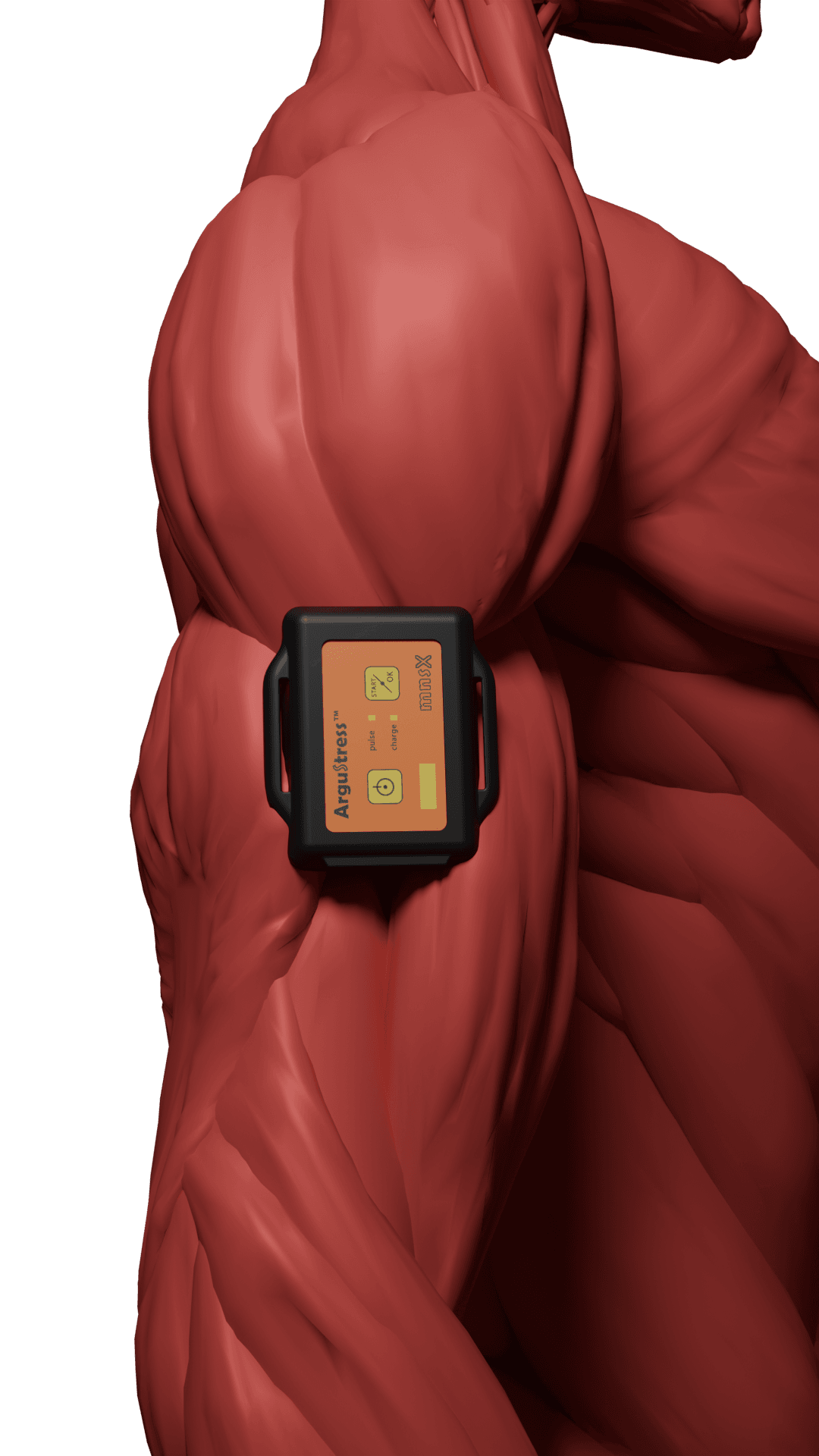
mnsX should be worn on your upper arm.
- If you are using a Garmin Edge, it does not matter which arm you choose.
- If you are using a Garmin watch, we recommend wearing mnsX on the same arm as your watch. This improves signal strength and communication between mnsX and your Garmin device.
Placement
Accurate placement is critical for reliable data. Follow these steps carefully:
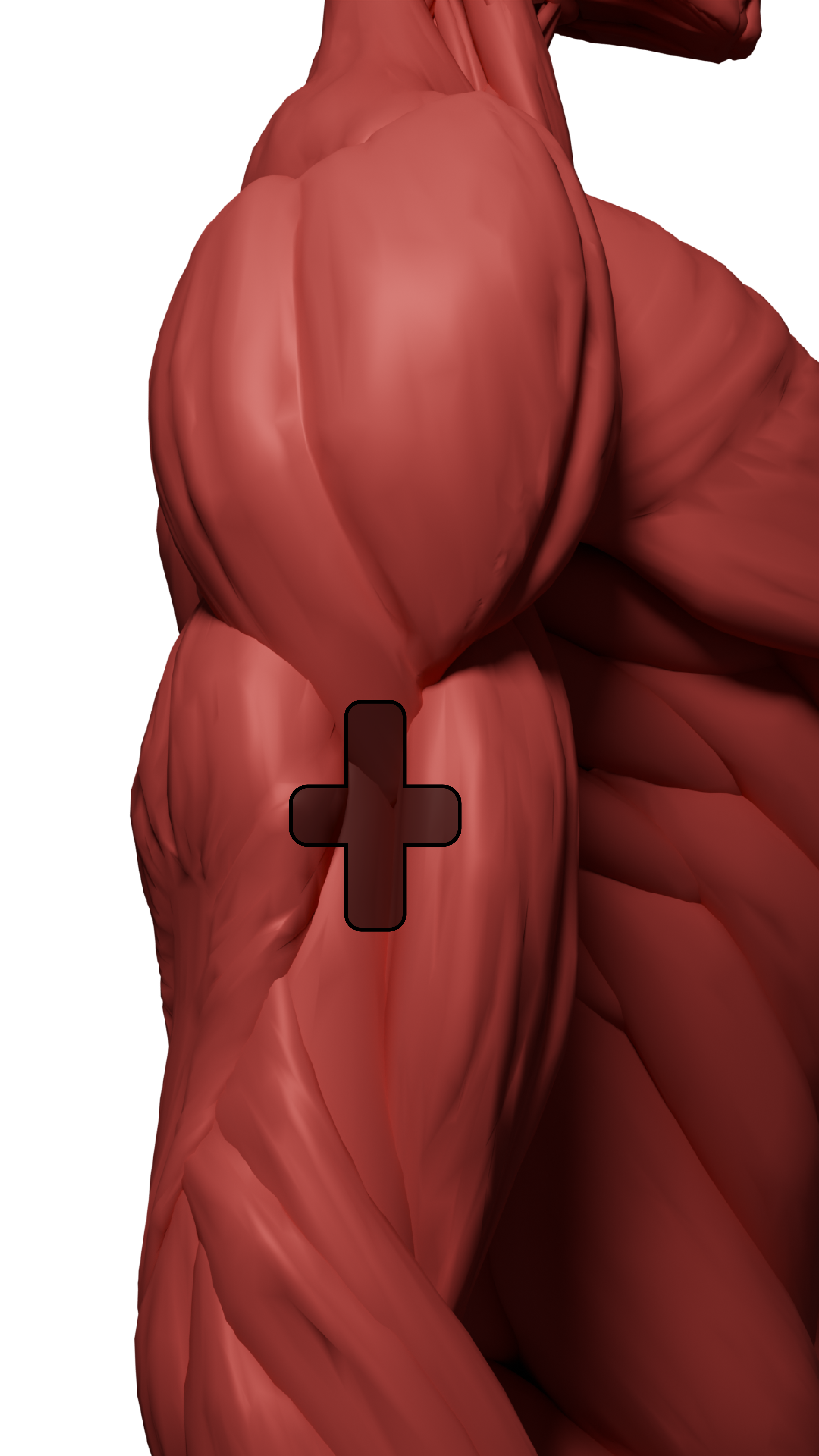
- Gently flex and grab your biceps.
- Place your fingers between your biceps and triceps.
- Slide your hand upward until your index finger reaches the bottom of the deltoid.
- You should feel a small “valley” surrounded by muscle tissue.
- Place your middle fingers just below your index finger.
- Position the center of the mnsX directly under your middle finger.
A placement tolerance of 1–1.5 cm around the ideal spot is acceptable, but always aim to be as precise as possible.
Device Orientation
Make sure the POWER button is facing upward.
This orientation improves signal quality and communication with your Garmin device.
Band Adjustment
Inside the box, you’ll find two loops and one long band, which can be cut to the appropriate length. This design allows proper fitting across a wide range of arm sizes, from road cyclists to track athletes.
- Choose a band length that keeps mnsX secure and stable throughout your entire training session.
- The band should be firm but not too tight—over-tightening may cause discomfort during longer sessions.
- Ensure your skin is clean and dry under the device. Body lotion or sunscreen can reduce grip and cause the device to slip.
2. mnsX’s buttons, LEDs & modes
Buttons & LEDs
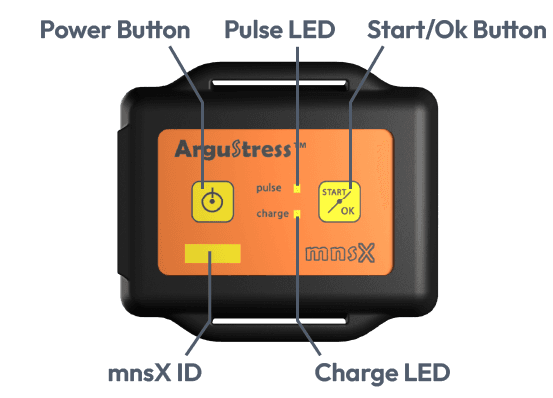
mnsX has two buttons and two LEDs:
- POWER button (1)
- START / OK button (2)
- PULSE LED (3)
- CHARGE LED (4)
The function of the buttons and LEDs depends on the current device mode, which is explained below.
Turning on/off
Turn on
Press and hold the POWER button (1). The mnsX will vibrate once (short) — you can release the button now — then vibrate again (long), indicating the device is turned on.
Turn off
Press and hold the POWER button (1) until the mnsX vibrates three times. This means the mnsX is now turned off.
Automatic turn off
mnsX will shut down automatically in the following cases:
- The Connect IQ datafield (activity) has been stopped for more than 10 minutes.
- No heart rate or power data has been received for 30 minutes.
- 7 hours of recording have passed.
Whenever possible, please turn off mnsX manually. This helps avoid unnecessary recordings.
Modes
Battery Level Indication
Turn on your mnsX. After the vibration stops, the PULSE LED blinks 1 to 5 times, indicating the battery’s charge level. (20% / blink).
Bluetooth Mode (BLE)
After turning on mnsX, wait until the PULSE LED starts blinking rapidly. This indicates that the device is in Bluetooth Low Energy (BLE) mode and can connect to the ArguStress Companion app.
Phone Pairing mode
To pair mnsX with the ArguStress Companion app:
- Turn on mnsX and wait until the PULSE LED blinks rapidly (BLE mode).
- Press the SEARCH button in the phone application.
- Press and hold both the POWER and START/OK Buttons on the mnsX simultaneously until the mnsX starts vibrating periodically. (Like a train.)
Important: The ArguStress Companion app will guide you through pairing — following the on-screen steps makes the process much easier.
HRM Pairing mode
To pair mnsX with your Heart Rate Monitor (HRM):
- Turn off your mnsX.
- Put on your HRM and wet the sensor pads.
- Press and hold the POWER button (ignore the vibrations — hold it long!) until the PULSE LED stays on continuously, then release.
- Wait for the LED to blink:
- 4 blinks: an HRM device has been found.
- 2 blinks: no HRM device was found.
Record mode
Start recording:
- Turn on your device and wait until the PULSE LED blinks rapidly (BLE mode).
- Press the START/OK button.
- The device will vibrate once and start the recording.
If your HRM is paired and detected, the PULSE LED will blink in sync with your heartbeats.
Stop recording:
- Press and hold the POWER button until the device vibrates three times to turn off and stop recording. (Turn off your mnsX.)
3. Data recording
To start recording data, you will need:
- Your mnsX device
- A Heart Rate Monitor (HRM)
- A compatible Garmin device with the ArguStress data field installed
Important: Always select the correct sport activity, as mnsX behaves differently depending on the selected configuration.
Important:
mnsX can record a maximum of 7 hours per training session and can store up to 8 hours of recordings in total.
(e.g. 8 × 1 hour, 4 × 2 hours, 2 × 4 hours, 2 x 1.5 + 2 x 1 + 1 x 3 hours, etc.)
Please upload your training data before starting your next session.
This prevents data loss and ensures your mnsX remains up to date.
Start Recording
- Put on your HRM and wet the sensor pads.
- On your Garmin device, start the activity that contains the ArguStress data field.
- On the data field screen, you should see:
- “Connecting to your mnsX ID (P)” if a Connect IQ PIN is set.
- “Connecting to your mnsX ID” if no PIN is set.
- Turn on your mnsX and wait until it enters BLE mode (PULSE LED blinks rapidly).
- Press the START / OK button on mnsX to enter Record mode.
- The device vibrates once to confirm recording has started.
- Verify that the PULSE LED blinks in sync with your heartbeat.
- If not, see Troubleshooting below.
- Confirm that the “Connecting to …” message disappears and the graph layout becomes visible on your Garmin device.
- If not, see Troubleshooting below.
- Press Start on your Garmin device to begin the activity recording.
- mnsX will vibrate to confirm.
Stop Recording
Press and hold the POWER button until the device vibrates three times to turn off and stop recording. (Turn off your mnsX.)
Troubleshooting
PULSE LED Does Not Blink in Record Mode
This means mnsX is not receiving heart rate data.
Please check:
- The HRM sensor pads are properly wet.
(most of the time, this is the issue) - mnsX is paired with the correct HRM.
(verify in the ArguStress Companion app under device settings)
“Connecting to … 0” Message on Garmin Device
This indicates that the data field settings are missing or incomplete.
If you have just configured the settings:
- Exit the current activity (Activity A).
- Start a different activity (Activity B).
- Return to the original activity (Activity A).
If you have not configured the settings yet:
- Check 4. Data Field Settings.
4. Data quality
mnsX measures real-time metabolic responses through skin reflexes.
That’s why data quality is critical for the device to deliver accurate and reliable information.
What Affects Data Quality
The quality of your data depends mainly on the following factors:
- Device Placement
mnsX must be positioned correctly on your upper arm to capture all relevant skin reflex signals.
(See 1. How to Wear for detailed placement instructions.) - Correct Sport Activity
Always select the correct sport activity and environment, because mnsX behaves differently in each configuration.
5. Uploading data to the cloud
You can upload your training records using the ArguStress Companion app.
Important:
mnsX can record a maximum of 7 hours per training session and can store up to 8 hours of recordings in total.
(e.g. 8 × 1 hour, 4 × 2 hours, 2 × 4 hours, 2 x 1.5 + 2 x 1 + 1 x 3 hours, etc.)
Please upload your training data before starting your next session.
This prevents data loss and ensures your mnsX remains up to date.
How to Upload Training Data
- Open the ArguStress Companion app.
- Turn on your mnsX and wait until it enters BLE mode (PULSE LED blinks rapidly).
- Tap the Upload button in the bottom navigation bar.
- If the app displays “No connected device”:
- Return to the Overview screen and wait for mnsX to connect automatically.
- If it does not connect, tap the mnsX icon in the top-right corner.
- Start a manual connection by tapping the magnifier icon, then follow the on-screen instructions.
- The app will display the training records stored on your mnsX.
- Select the training record you want to upload.
- If multiple records are available, upload them from oldest to newest.
- Wait until the upload is complete.
- The Cloud Analyzer processes the data, updates your parameters if necessary, and syncs the new parameters back to your mnsX automatically.
How to Delete Training Data
- Open the ArguStress Companion app.
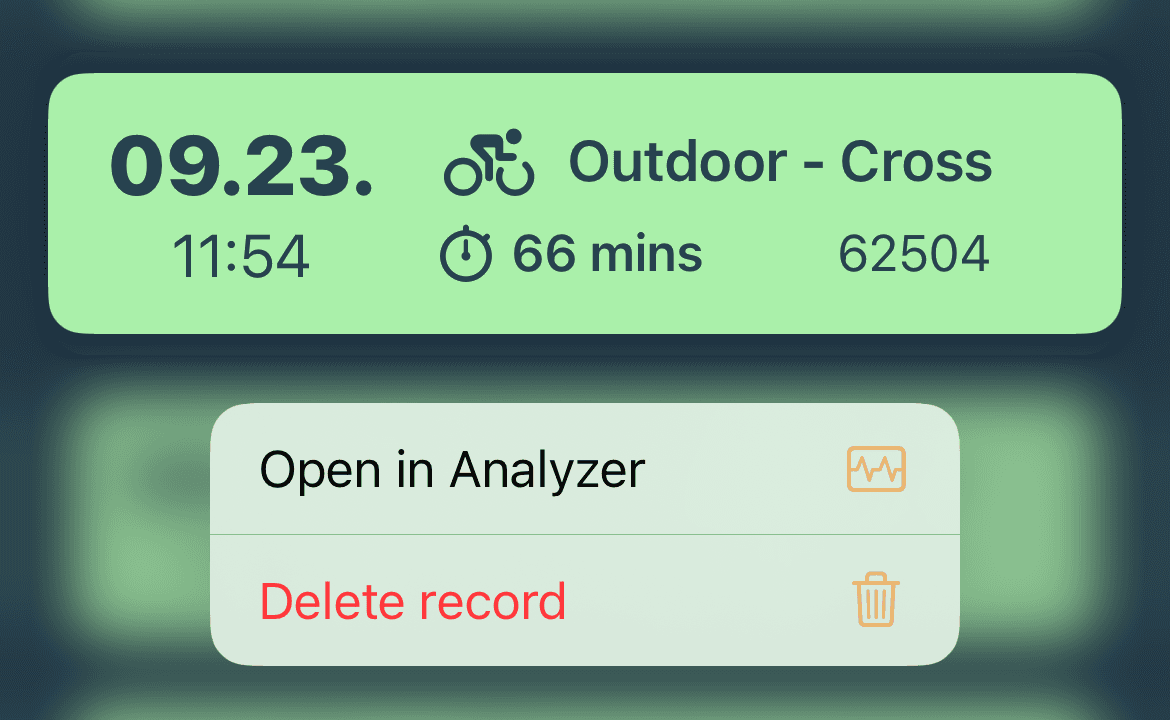
- Tap the Analyzer button in the bottom navigation bar.
- Long press on the training record you want to delete.
- Tap the Delete Record button to confirm.
6. Downloading data from the Cloud
You can download and view your stored training records from the cloud in two ways.
Using the ArguStress Companion App
- Open the ArguStress Companion app.
- Tap the Analyzer button in the bottom navigation bar.
- Select the training record you want to view.
Using the Browser App (Recommended)
For deeper post-training analysis, we strongly recommend using the Browser App, which offers a larger screen and more detailed insights.
Browser App- Log in to your account.
- Open the Calendar.
- Select the training record you want to view.
7. Firmware update
The ArguStress Companion app will notify you when a new firmware update is available for your mnsX.



How to Update Firmware
- Open the ArguStress Companion app.
- Turn on your mnsX and wait until it enters BLE mode (PULSE LED blinks rapidly) and connects to your phone.
- Go to the Upload screen in the bottom navigation bar and make sure all training records are uploaded.
- Important: A firmware update clears the mnsX’s internal memory and permanently deletes all stored training records on the device.
- Go to Overview, then tap the mnsX icon in the top-right corner.
- Open Device Settings.
- Scroll down to Firmware Update and follow the on-screen instructions.
Congratulations! 🎉
You and your mnsX are ready for the first training!
Tip: Check out our Connect IQ guide which introduce the Data Fields’ displays and features.