
Start Here
This walkthrough will take you through the entire setup process—from creating your account and adding your new mnsX device, to configuring essential settings and pairing it with your HRM (and Stryd). Once your mnsX is ready, we’ll also guide you through the Connect IQ setup for display and show you how to wear and use your device.
The entire setup guide takes about 5 minutes, or around 10 minutes if you’re new to Connect IQ.
1. Registration
Download the iOS App
To create a new account, you’ll need the ArguStress Companion app. Please download it from the Apple App Store.

Create Your Account
After the app is installed:
- Open the ArguStress Companion app.
- Tap Sign Up in the bottom-right corner.
- Follow the on-screen instructions to complete your registration.
Troubleshooting
If you encounter issues during registration:
- You couldn’t create an account:
Please try the entire sign-up process again. If the problem persists, please contact our support team. - You created an account but couldn’t add your device:
Continue to the next section below.
2. Add mnsX to the account
If your registration was successful, your mnsX is added to your account automatically, and you can proceed directly to Essential Settings.
If there was an error, or if you want to add another device to your account:
- Log in to your account in the ArguStress Companion app.
- From the Overview (main) screen, tap the mnsX icon in the top-right corner.
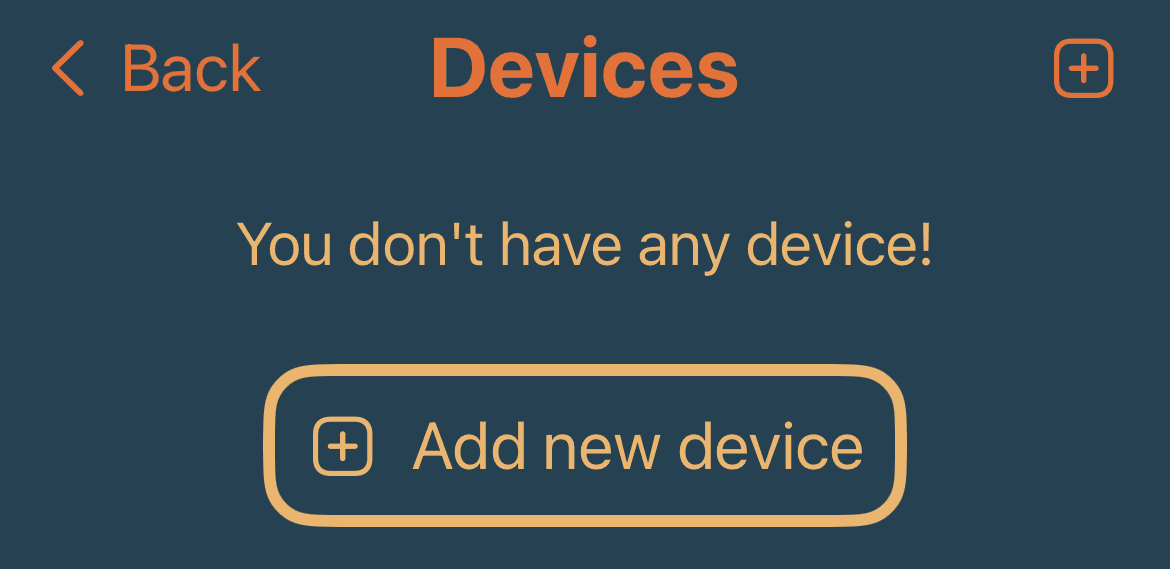
- Tap Add New Device, or press the + icon in the top-right corner.
- Follow the on-screen instructions to complete setup.
Your account is ready!
Next Step: Configure mnsX’s essential settings to ensure proper operation and accurate measurements.