
Essential Settings
Before using your device, several essential settings must be completed. If any required setting is missing, mnsX will not function correctly.
All mnsX settings can only be configured in the ArguStress Companion app.
1. Settings
Missing Setting
If a required setting is not configured, the mobile application will notify you in several ways:
- The top panel in the Overview screen and the device card in the Device List display the current and missing settings of your mnsX.
- A notification appears at the top of the Settings screen.
- A red, blinking exclamation mark (!) appears next to the missing setting.
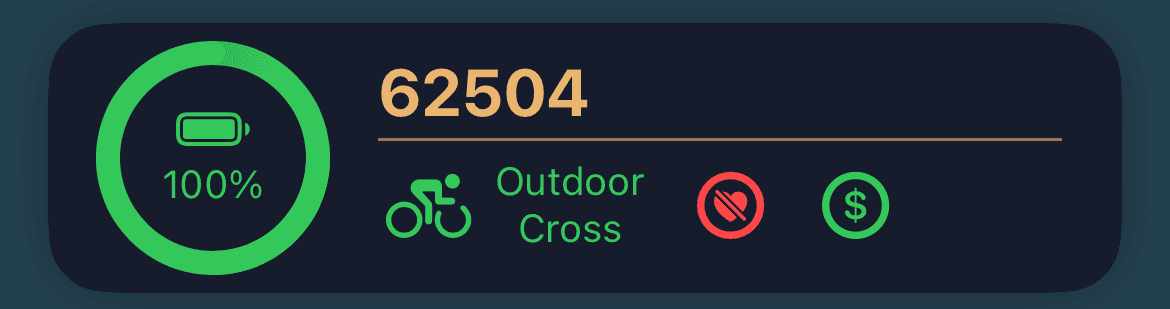
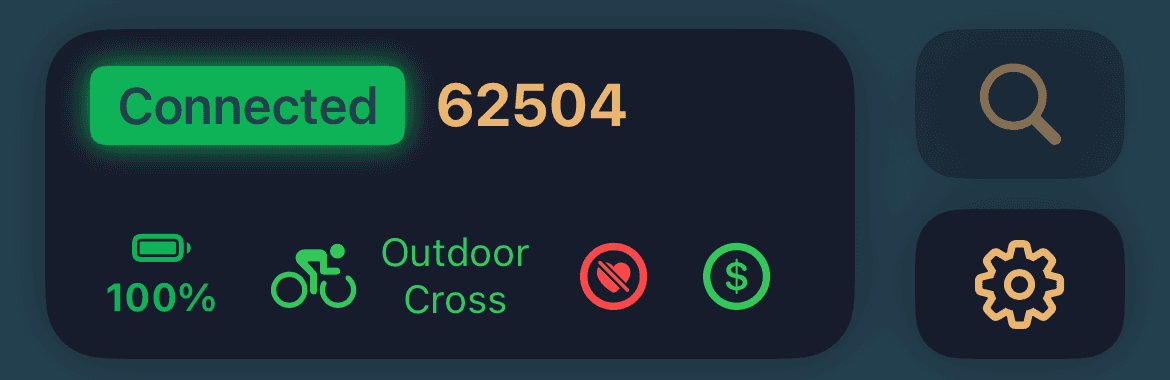

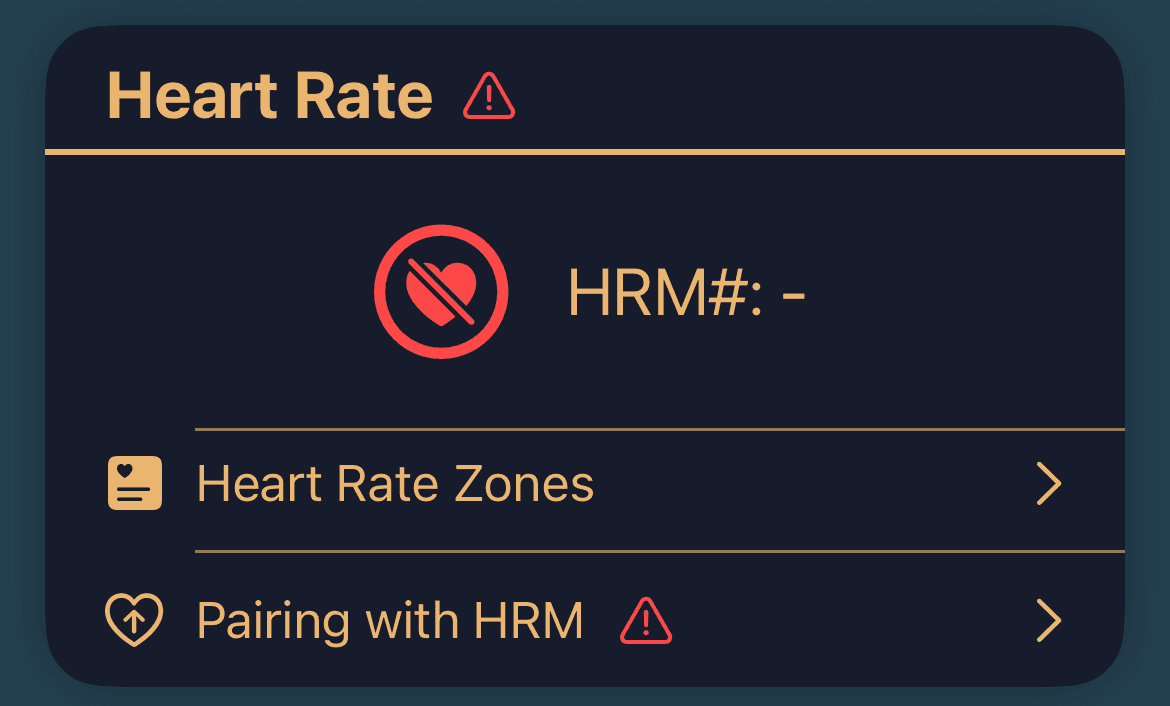
- From the Overview (main) screen, tap the mnsX icon in the top-right corner.
- Check the device connection status. The device must be connected to your phone.
- If it is not connected, tap the magnifier icon and follow the instructions.
- Once mnsX is connected, tap the gear icon to open the settings.
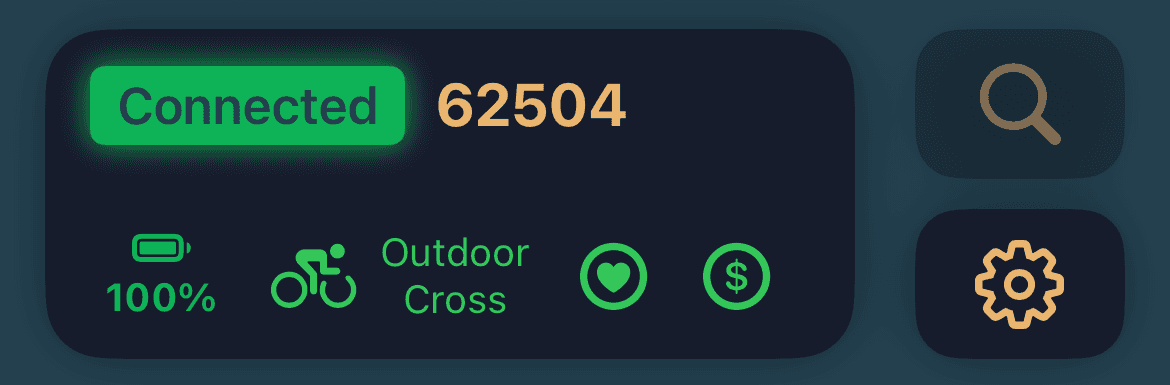
Save the settings
When you change a value, you usually need to save the setting to overwrite the current configuration on your mnsX.
- The green Save button is always located in the top-right corner of the screen or panel.

Sport activity
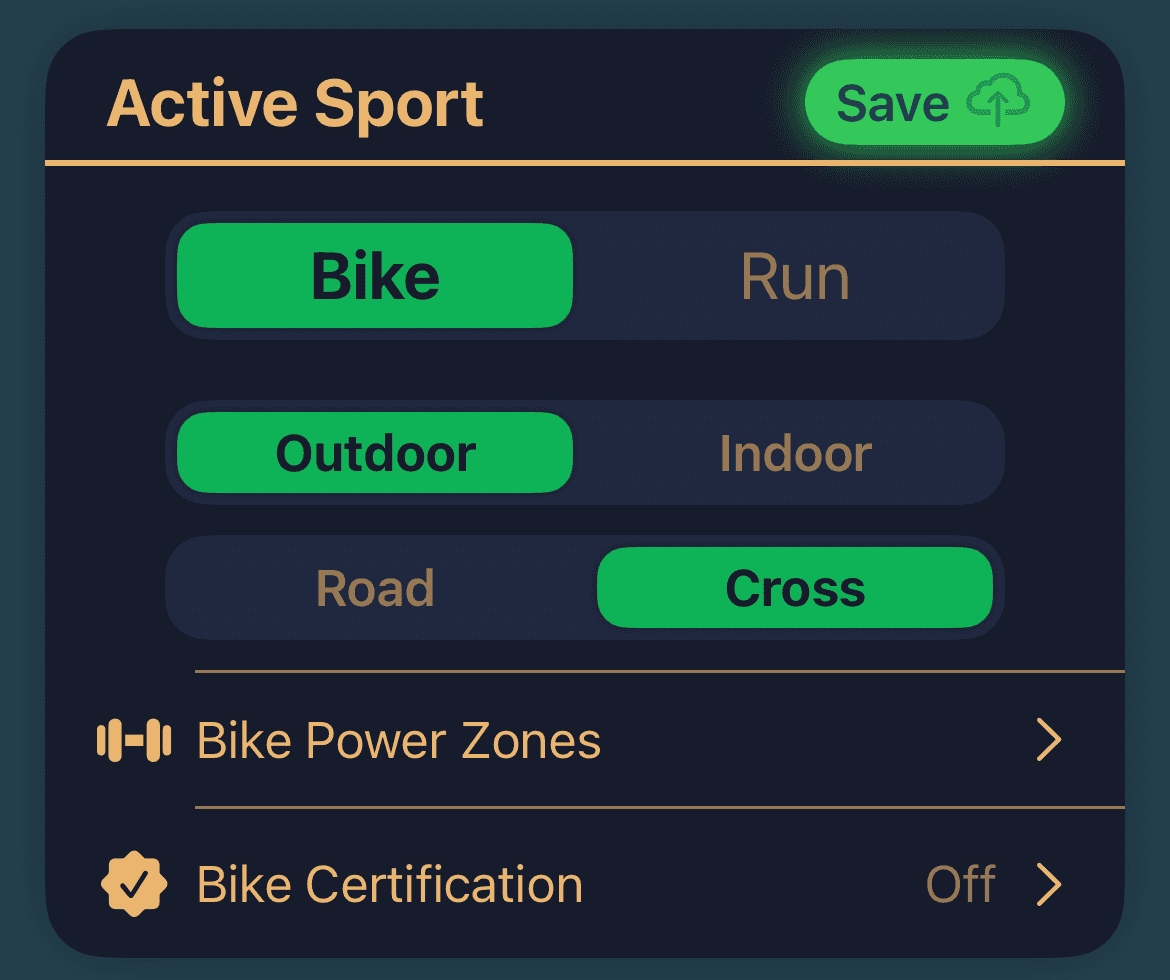
Important: Always select the correct activity and environment, as mnsX behaves differently depending on the configuration.
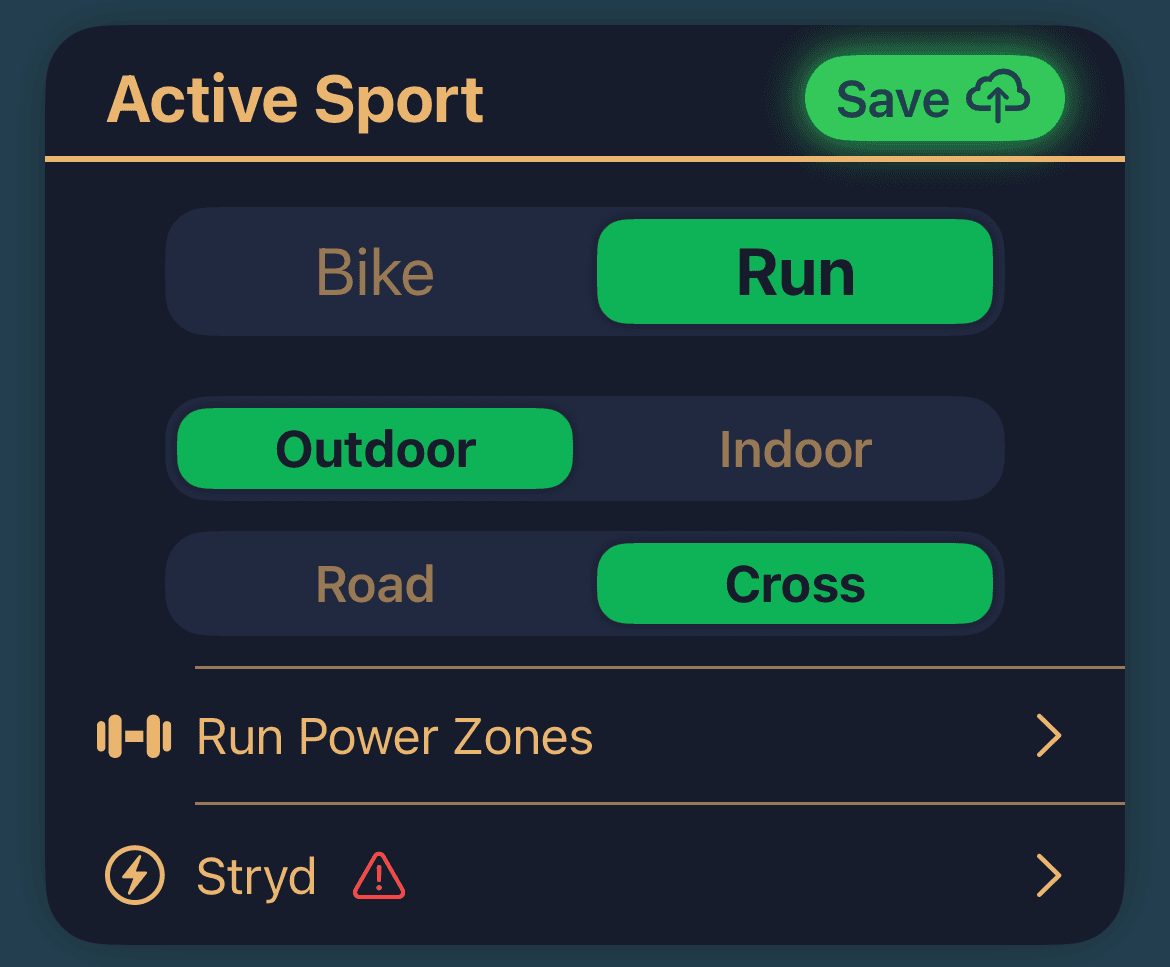
- Select your preferred activity in the Active Sport panel.
- Don’t forget to save your selection.
Bike/Run Power Zones
If you entered your Bike and/or Run 20’ Critical Power (CP) during registration, your power zones are set automatically and you can skip to the next section.
Displays your 20’ CP in watts and watts per kilogram (W/kg).
When you upload an activity to the cloud, the Cloud Analyzer automatically updates your power zones if needed. This feature is highly recommended, as it keeps your mnsX accurate and personalized over time.
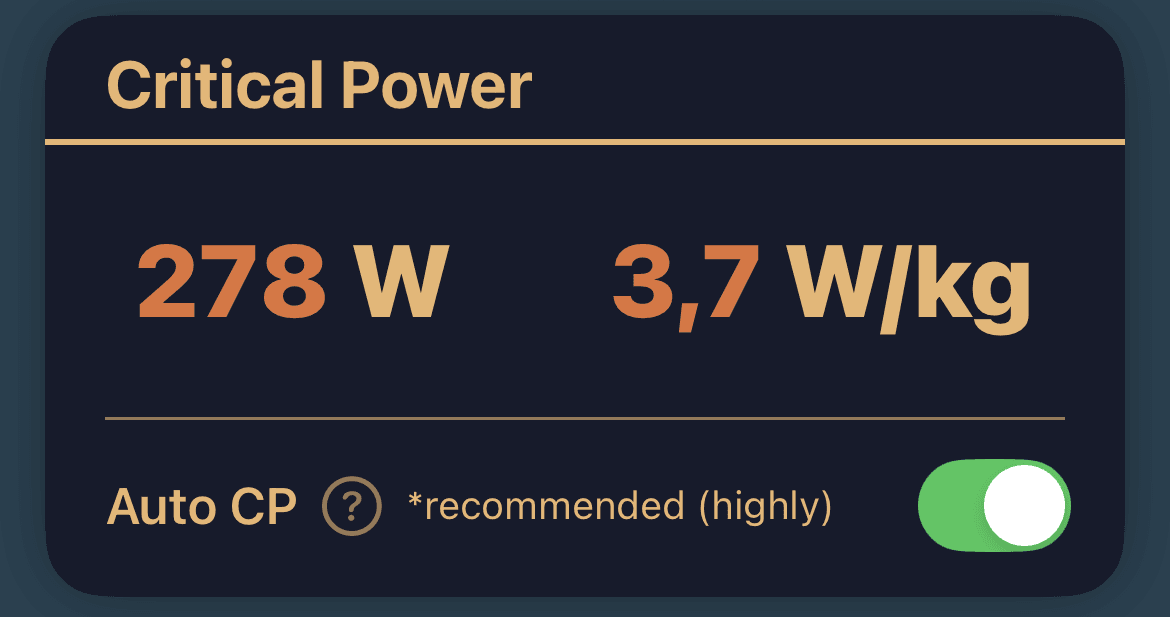
To set or update your power zones manually:
- Tap Bike/Run Power Zones in the Active Sport panel.
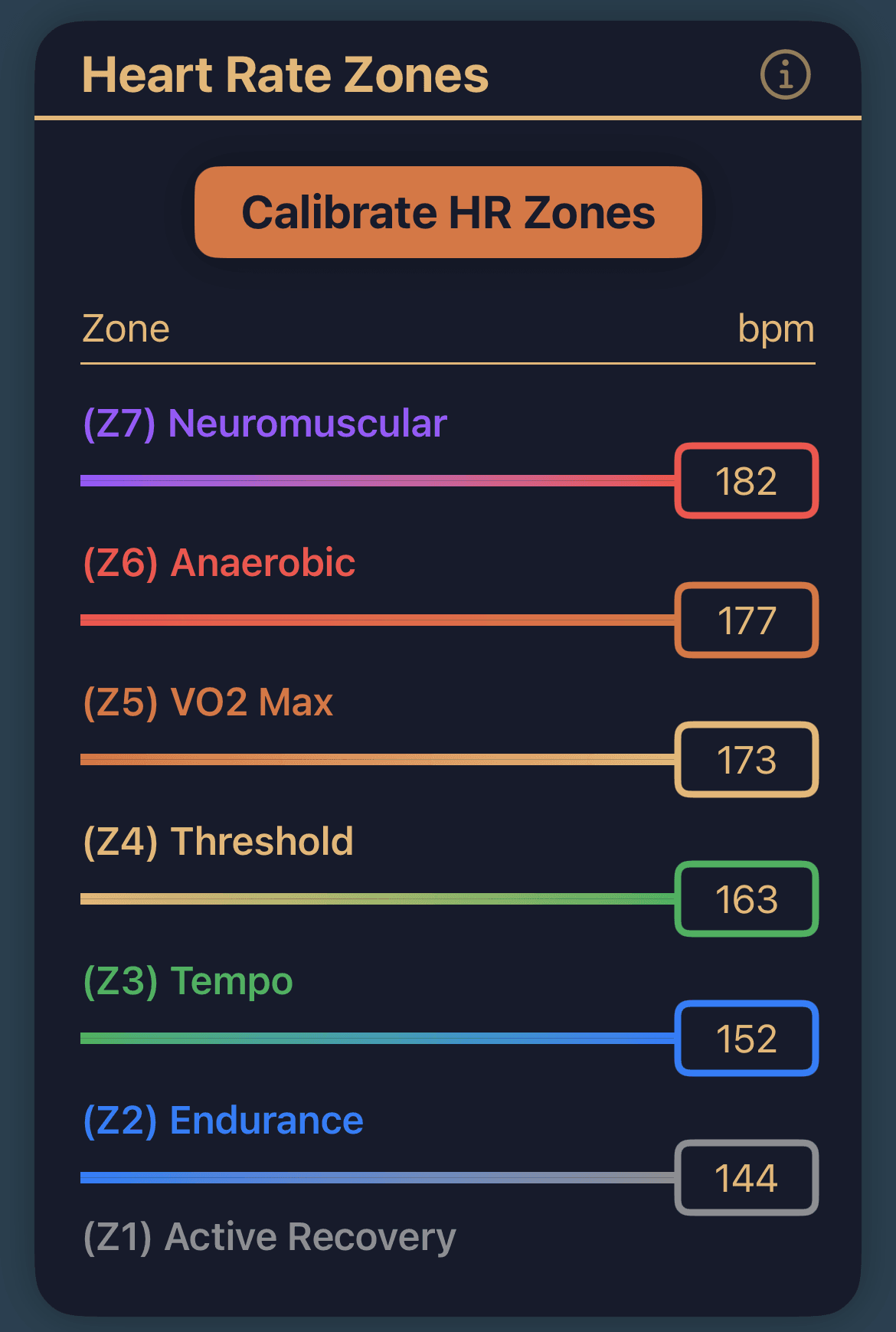
- Tap Calibrate Power Zones button.
- Enter your 20’ CP and tap Calibrate button.
- Tap Save button in the top-right corner.
If you are a runner, Stryd pairing will be later in Section 5. Pairing with Stryd.
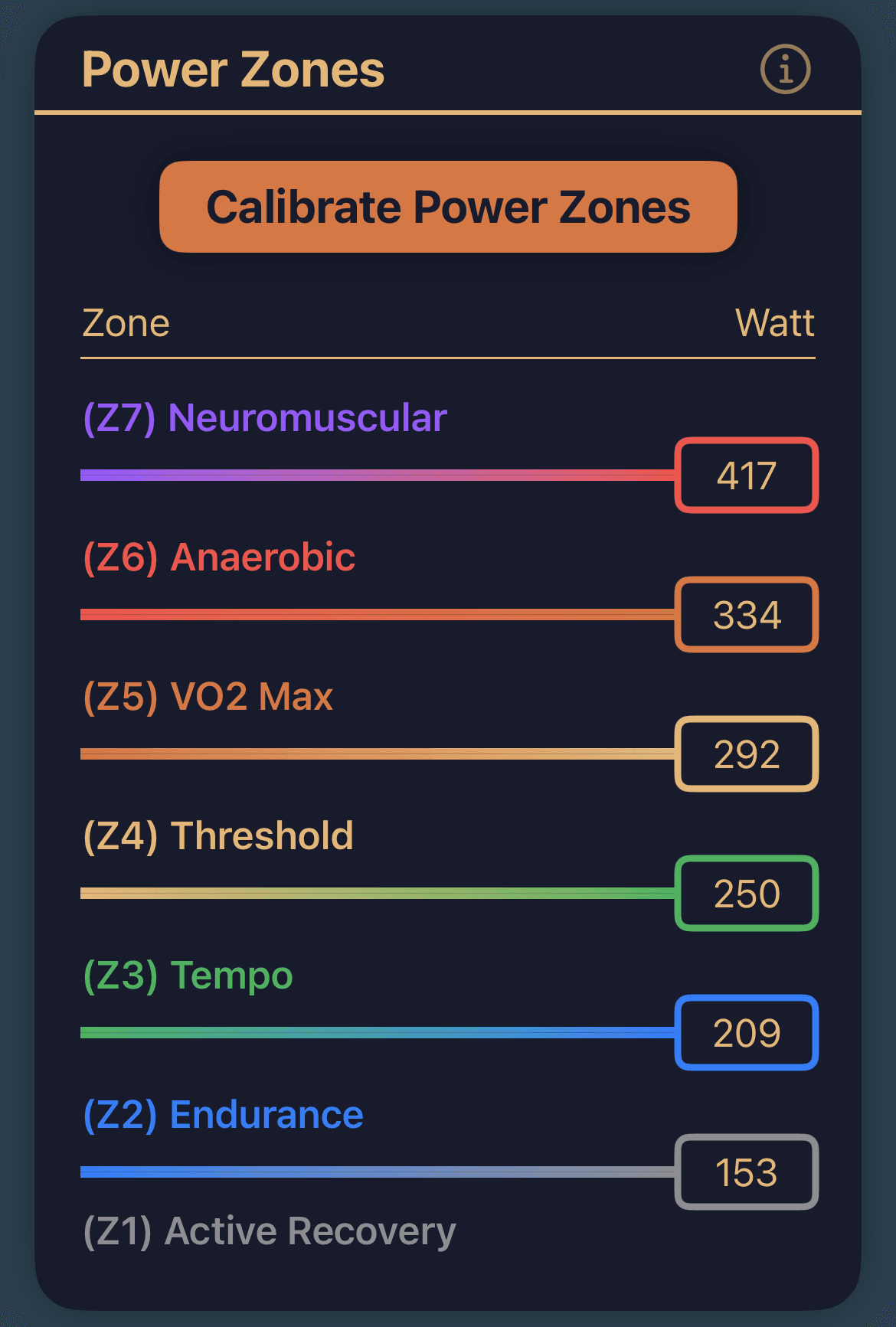
Heart Rate Zones
Important: Pairing with a Heart Rate Monitor (HRM) and configuring heart rate zones is essential for accurate mnsX measurements.
If you entered your max HR during registration, your heart rate zones are set automatically and you can skip to the next section.
To set or update your power zones manually:
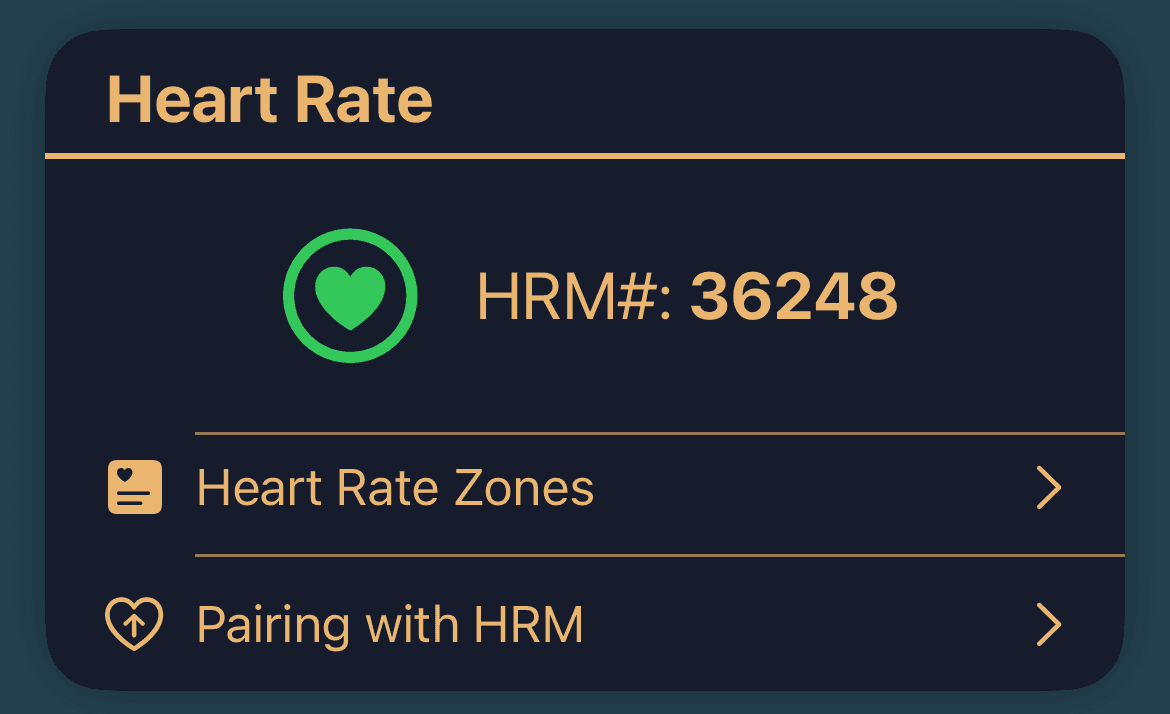
- Tap Heart Rate Zones in the Heart Rate panel.
- Tap Calibrate HR Zones button.
- Enter your max HR and tap Calibrate.
- Tap Save button in the top-right corner.
Pairing your HRM is covered in Section 4. Pairing with HRM.
Connect IQ PIN
mnsX communicates with Garmin devices via ANT, which is an open communication channel. This means that anyone who knows your device ID could potentially read or write data.
To secure this connection, mnsX uses a PIN code, which we strongly recommend enabling.
To set the PIN code:
- Tap the number field in the Connect IQ PIN panel.
- Enter a 3-digit PIN code.
- Using 0 as the PIN acts as a wildcard and leaves the connection open.
- Tap Set button. The setting is saved automatically.

If you set a PIN code, you must enter the same PIN in the Connect IQ data field settings on your Garmin device. This will be explained in the Connect IQ Setup section.
2. Pairing with HRM
Important: Pairing with a Heart Rate Monitor (HRM) and configuring heart rate zones is essential for accurate mnsX measurements.
Where to find HRM pairing:
- Open the ArguStress Companion app and go to your connected mnsX device settings.
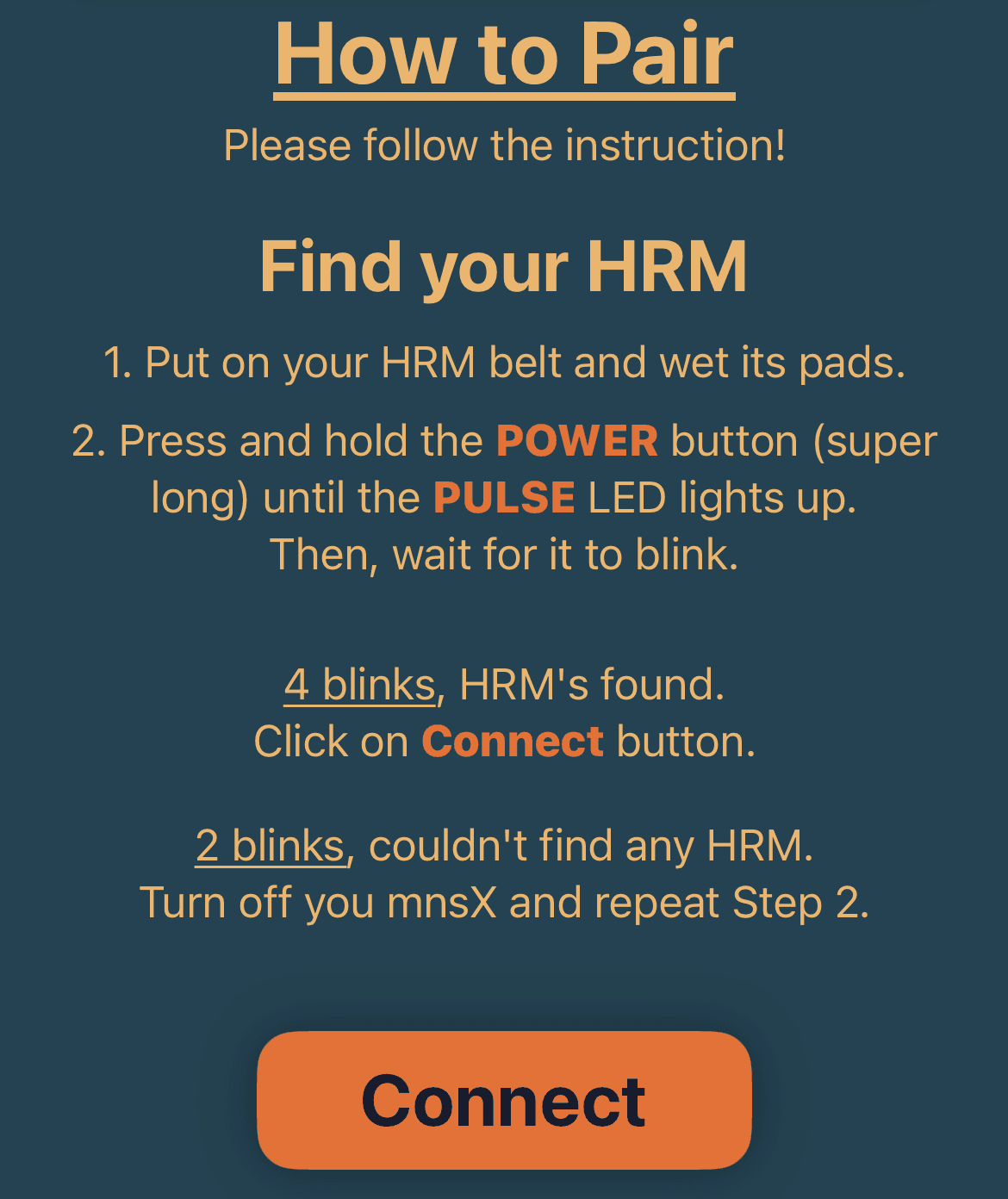
- Find the Heart Rate panel and tap Pairing with HRM.
- Follow the on-screen instructions, or use the steps below.
How to pair:
- Put on your HRM and wet the sensor pads.
- Turn off your mnsX:
- Press and hold the Power button until the device vibrates three times.
- After mnsX turned off, press and hold the Power button again (super long) until the Pulse LED lights up continuously.
- Wait for the Pulse LED blinking:
- 4 blinks: an HRM device has been found.
- 2 blinks: no HRM device was found.
- If you see 2 blinks, return to step 2 and repeat the pairing process.
- Make sure the HRM is worn correctly and the pads are sufficiently wet.
- If you see 4 blinks, tap the Connect button in the app.
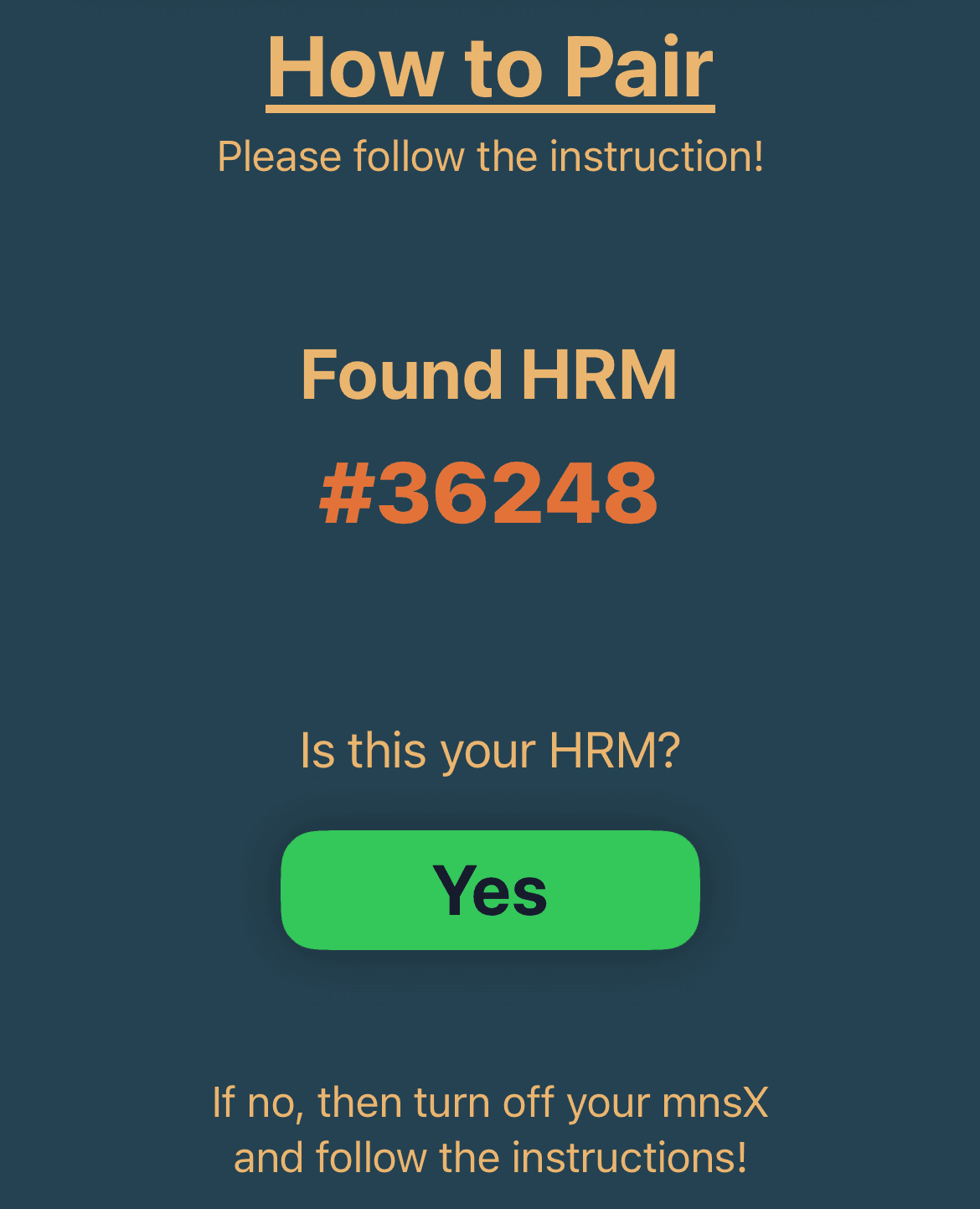
- Check that the detected device ID matches your HRM’s device ID.
- Tap Yes to confirm. The new settings will be saved automatically.
3. Pairing with Stryd (for runners)
Important: mnsX requires power data for accurate measurements. For running, power data is provided by Stryd.
Because Garmin does not transmit running power data to mnsX — even when Stryd is paired with your watch — you must pair Stryd directly with your mnsX.
Where to find Stryd pairing:
- Open the ArguStress Companion app and go to your connected mnsX device settings.
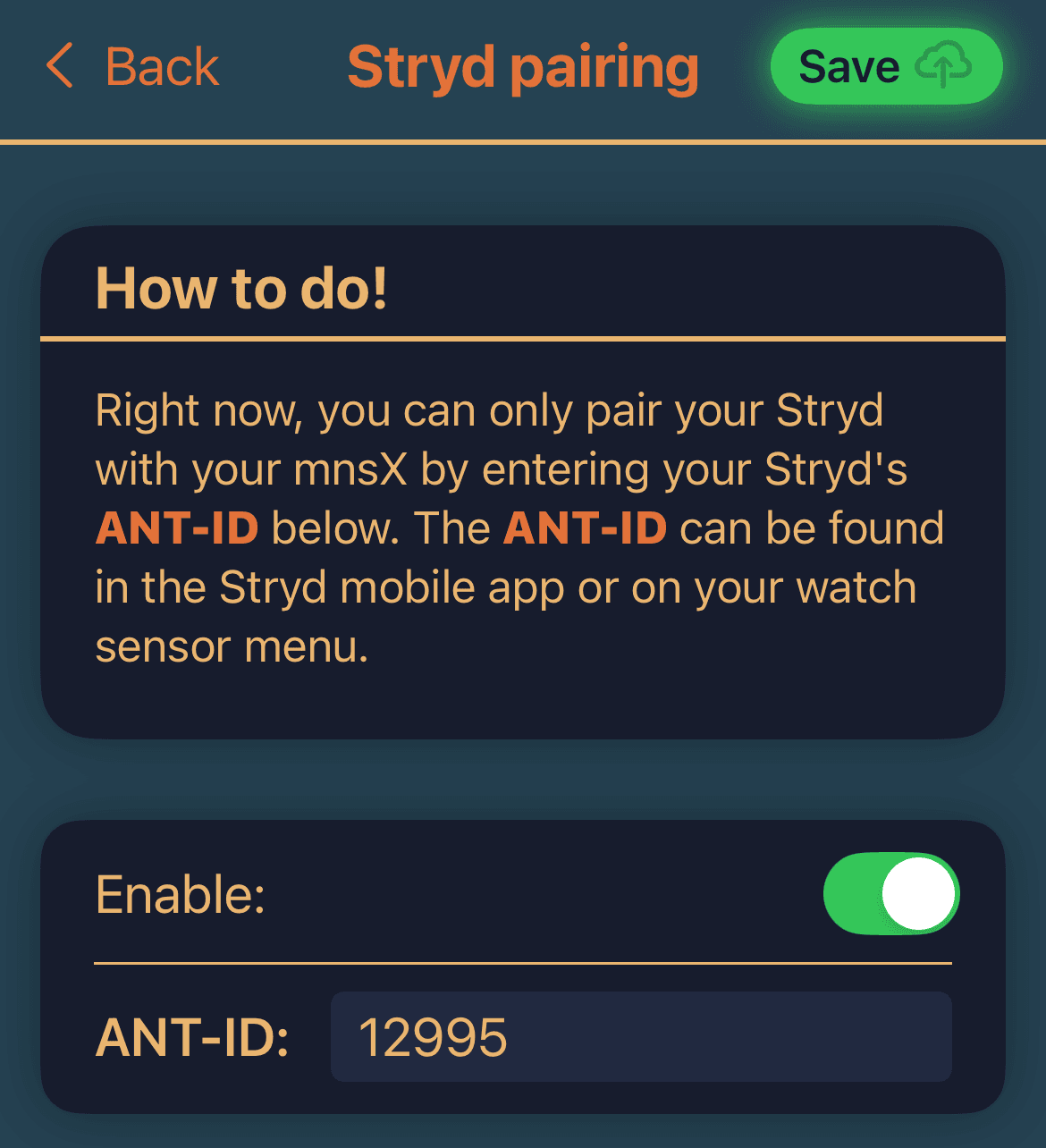
- Find the Active Sport panel and tap Stryd.
- Follow the on-screen instructions, or use the steps below.
How to pair:
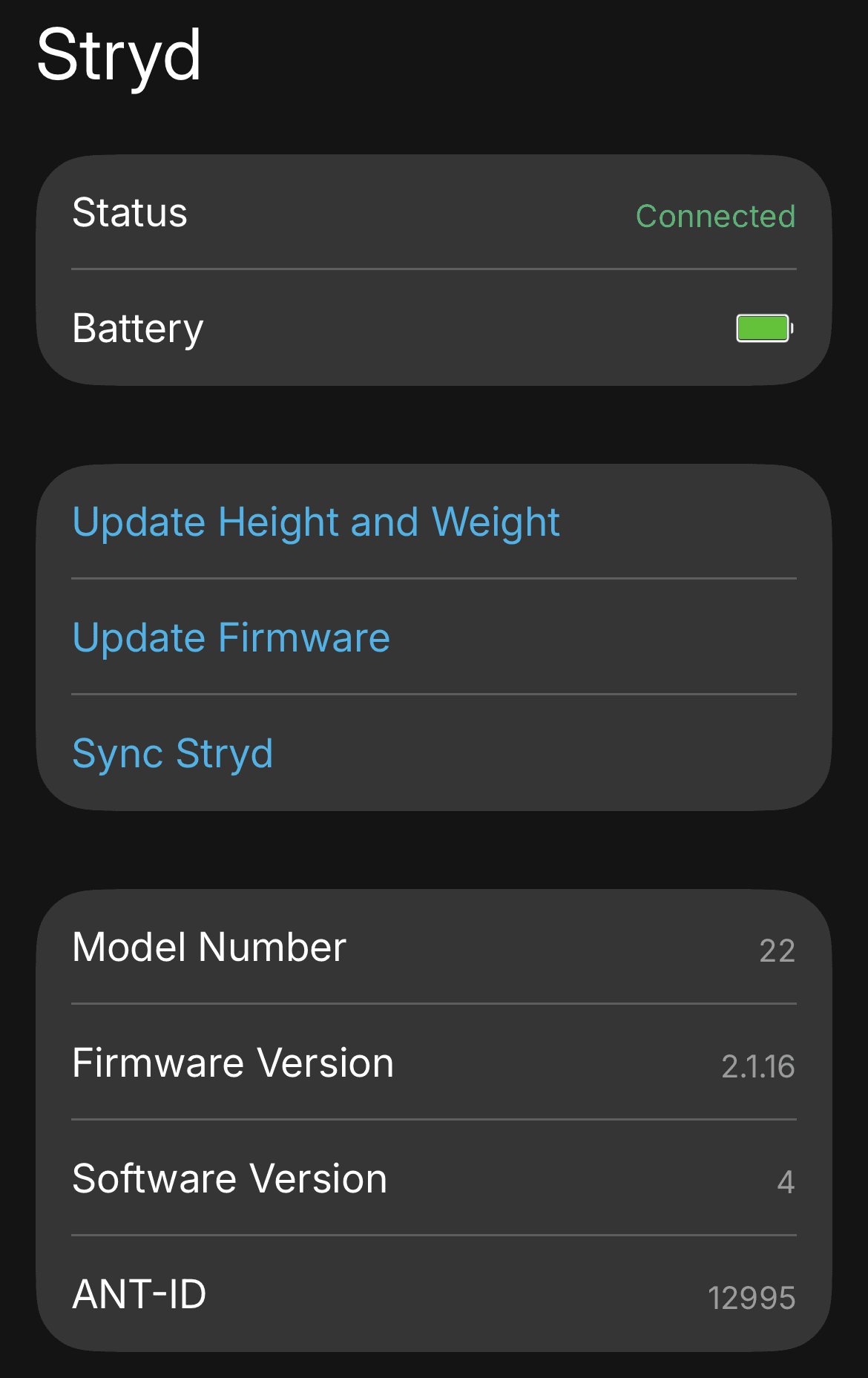
- Find your Stryd ANT-ID:
- You can view it in the Stryd mobile app
- In your Garmin watch’s sensor menu.
- Enter your Stryd ANT-ID into the ANT-ID field.
- Tap on the Save button in the top right corner.
Your mnsX is ready to use!
Next Step: Set up the Connect IQ data field to display your mnsX data on your Garmin device.